V380 Camera SD Card: Recording, Playback and Storage
Choose and format a microSD card for a V380 camera, pick continuous or motion recording, estimate days of footage and play back or download clips in the app.
In this article (10 sections)
- Why the SD card matters
- Choosing the right microSD card
- Inserting and formatting the card
- Continuous vs motion recording
- How many days of footage will the card hold?
- Playing back footage in the app
- Downloading and saving a clip
- Common SD card problems and fixes
- Money angle: what this storage costs
- Key takeaways
A V380 WiFi camera records to a microSD card inside the camera, and the V380 Pro app lets you play back and download those clips over WiFi or mobile data. Use a branded card within your camera's supported size (often 64 GB or 128 GB), format it from the app, choose motion or continuous recording, and the card will overwrite the oldest footage automatically when it fills up. Menu names can differ slightly by app version and camera model, so treat the steps below as a general guide.
Why the SD card matters
The V380 Pro app (developer Macro-video Technologies) shows a live view from the camera, but live view alone does not save anything. Without a memory card or a paid cloud plan, you have nothing to go back to after a theft, a dispute with a delivery person or a leak in the shop. A memory card is a one-time purchase, which makes it the cheapest way to keep footage.
Choosing the right microSD card
Look for four things:
| What to check | Why it matters | Practical pick |
|---|---|---|
| Maximum supported size | Cameras ignore or fail on cards larger than they support | Typically 64 GB or 128 GB; confirm in your manual |
| Speed class | Video needs steady write speed | Class 10 / U1 or better |
| Endurance | Cameras write 24x7, which wears out ordinary cards | "High endurance" or "surveillance" cards last longer |
| Genuine brand | Fake-capacity cards corrupt recordings | Buy from an authorised seller and keep the bill |
Price ranges in India are typically a few hundred rupees for a 32-64 GB card and somewhat more for 128 GB or high-endurance versions. A bigger card is not useful if your camera cannot read it, so check the supported size before buying.
Inserting and formatting the card
- Power off the camera before inserting or removing the card. Hot-swapping can corrupt the card.
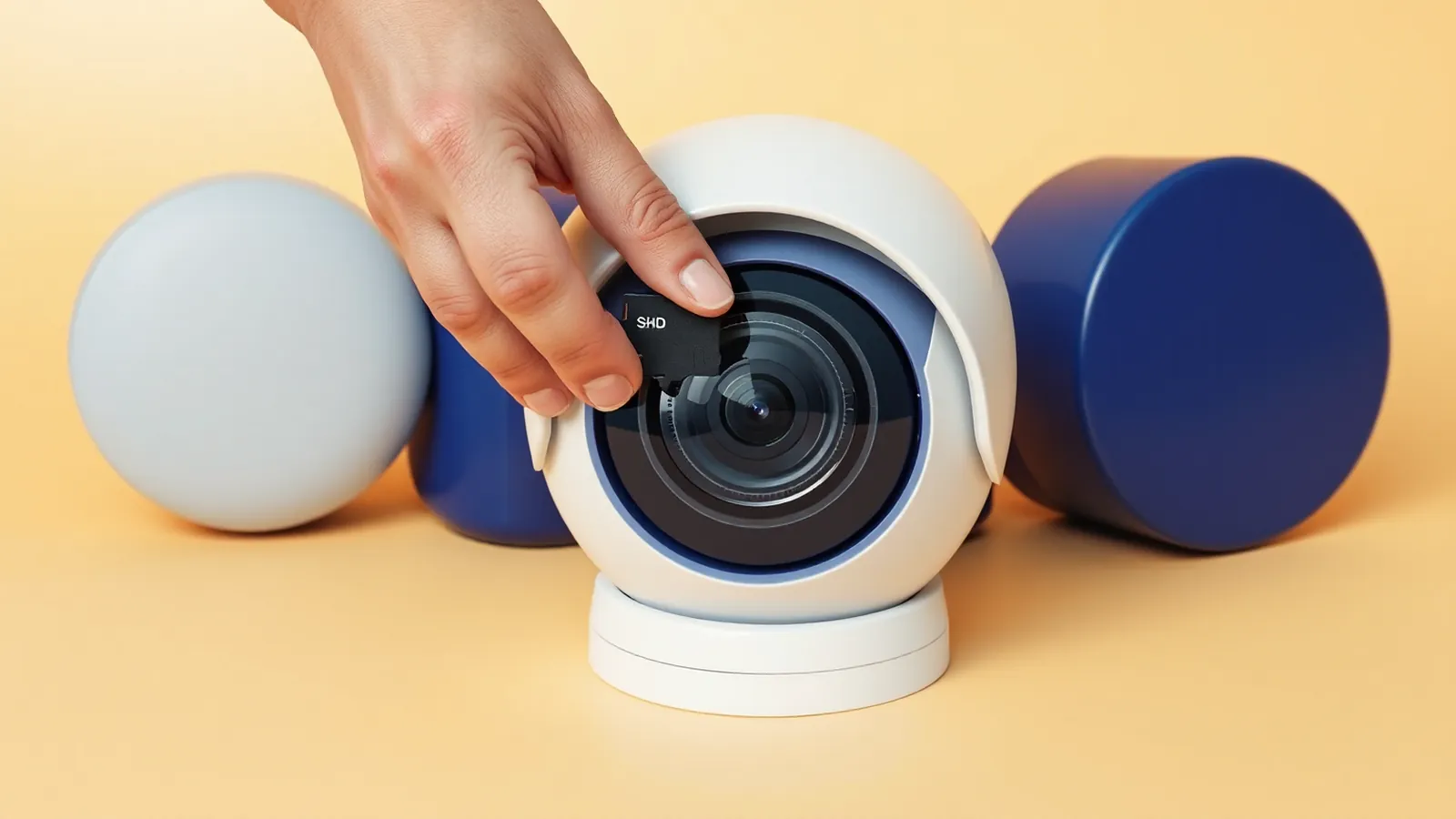
- Insert the card into the slot (on many pan-tilt models it is hidden under the lens; tilt the lens up gently to reach it).
- Power the camera on and open the V380 Pro app.
- Open the camera's settings and look for the storage or SD card section. It usually shows total and free space.
- Use the format option there. This erases the card and prepares it for that camera.
- Wait until the app shows the card as available, then check that recording has started.
Some guides suggest formatting the card as FAT32 on a computer first. That can help with stubborn cards, but formatting inside the app is usually enough and is the safer default. If a card shows 0 GB or "no SD card" after formatting, try a smaller, branded card.
Continuous vs motion recording
Most V380 cameras offer two broad recording modes. The exact labels vary by app version.
| Mode | What it saves | Good for | Downside |
|---|---|---|---|
| Continuous (all-day) | Everything, 24 hours a day | Shops, cash counters, entrances | Fills the card faster, fewer days stored |
| Motion / alarm | Only clips when movement or sound is detected | Homes, rooms empty most of the day | Can miss slow movement or the seconds before a trigger |
Motion recording also depends on detection sensitivity. Too high and you get clips of curtains and passing headlights; too low and you miss people. Test it for a day and adjust.
How many days of footage will the card hold?
Storage depends on bitrate, which depends on resolution, compression and how busy the scene is. A common range for these cameras is roughly 0.5 to 2 Mbps. Here is an illustrative calculation at 1 Mbps:
- 1 Mbps = 1 megabit per second = 0.125 megabytes per second
- Per hour: 0.125 MB × 3,600 seconds = 450 MB
- Per day: 450 MB × 24 = 10,800 MB, about 10.8 GB
- A 64 GB card has about 59-60 GB of usable space, so 59 ÷ 10.8 ≈ 5.5 days of continuous recording
| Card size (usable approx.) | Continuous at 0.5 Mbps | Continuous at 1 Mbps | Continuous at 2 Mbps |
|---|---|---|---|
| 32 GB (~29 GB) | ~5.4 days | ~2.7 days | ~1.3 days |
| 64 GB (~59 GB) | ~10.9 days | ~5.5 days | ~2.7 days |
| 128 GB (~118 GB) | ~21.9 days | ~10.9 days | ~5.5 days |
With motion recording, the camera may record only 2-4 hours of clips on a quiet day, so the same card can last several weeks. Treat these as estimates; your app usually shows how much space is used, and the real test is to check the oldest date available in playback after a week.
When the card fills up, cameras normally overwrite the oldest recordings (loop recording). If you need a clip as evidence, download it soon, before it is overwritten.
Playing back footage in the app
- Open the V380 Pro app and tap your camera.
- Find the playback or recording option (often an icon or tab in the live-view screen, sometimes labelled "Playback" or with a clock or film symbol).
- Choose SD card / device recordings rather than cloud, if both are shown.
- Pick the date. A timeline or list of clips appears; motion clips are often marked differently from continuous ones.
- Drag the timeline or tap a clip to play it.
Playback streams video from the camera to your phone, so it uses data. On mobile data, one hour of playback at 1 Mbps uses about 450 MB.
Downloading and saving a clip
Most app versions let you record or download the portion you are watching to the phone, usually through a download, record or scissor-type button during playback. The file then appears in the app's album or your phone gallery. If you cannot find a download option in your version:
- Use the app's in-playback record button and play the clip in real time.
- Or power off the camera, remove the card and read it on a computer with a card reader. Files may be in a format that needs a common media player.
For an incident such as a theft, save the clip in two places (phone and a cloud drive or computer) and note the date and time shown on screen. If you are filing an insurance claim for stolen goods, footage can support it; see our note on home contents insurance.
Common SD card problems and fixes
| Problem | Likely cause | What to try |
|---|---|---|
| "No SD card" in app | Card not seated, unsupported size | Power off, reseat, use a smaller supported card |
| Card shows but no recordings | Recording mode off or schedule set | Check recording settings, turn on all-day or motion |
| Playback gaps | Motion mode, power cuts, card errors | Expected in motion mode; check power; reformat |
| Old dates missing | Card full, loop overwrite | Normal; use a bigger card or motion mode |
| Frequent corruption | Worn or fake card | Replace with a branded high-endurance card |
| Time on clips is wrong | Camera time zone not synced | Set the time zone in camera settings |
Replace the card every year or two on a camera that records 24x7. Cards wear out quietly, and you usually discover it only when you need a clip.
Money angle: what this storage costs
A microSD card is a one-time cost that typically works out to a few hundred rupees a year once you spread it over its life, compared with a recurring cloud plan. If you add several cameras and subscriptions over time, list them alongside your other recurring charges; our guide on tracking subscriptions and bills shows a simple way.
Key takeaways
- Use a branded Class 10 / U1 microSD card no larger than your camera's supported size, typically 64 GB or 128 GB.
- Power off before inserting the card, then format it from the V380 Pro app's storage settings.
- At an illustrative 1 Mbps, continuous recording uses about 10.8 GB a day, so 64 GB holds roughly 5 days; motion mode lasts much longer.
- The card overwrites the oldest footage when full, so download important clips quickly.
- Menu names differ by app version; look for storage, recording and playback options in the camera's settings.
Related guides: V380 Cloud Storage vs SD Card: Cost and Safety Compared, How to View a V380 Camera on PC or Laptop, WiFi Camera Data and Electricity Use: Monthly Cost.
Frequently asked questions
What size SD card does a V380 camera support?
Many V380-based cameras list microSD support up to 64 GB or 128 GB, but the limit depends on the model. Check the box, label or manual of your camera, and use a card no larger than the listed maximum.
Should I format the SD card before using it in a V380 camera?
Yes. Format the card from the camera's storage settings in the V380 Pro app after inserting it, so the camera sets it up the way it expects. Formatting erases everything, so copy any clips you need first.
How many days of footage will a 64 GB card hold?
It depends on resolution, bitrate and recording mode. As an illustrative estimate, at about 1 Mbps of continuous recording a 64 GB card holds roughly 5 days, while motion-only recording can stretch the same card to two weeks or more.
Why is my V380 camera not detecting the SD card?
Common reasons are a card larger than the camera supports, a card not fully pushed in, an unformatted or corrupted card, or a fake-capacity card. Power off the camera, reseat the card, then format it from the app; if it still fails, try a different branded card.
Does the camera keep recording when the WiFi is down?
On most models, recording to the SD card continues as long as the camera has power, even if WiFi or internet is down. You cannot view live or play back remotely until the connection returns.
This article is for general education and is not personalised financial, tax or legal advice. Rates and rules are as of 29 Oct 2026; confirm current terms with your lender, AMC or a qualified adviser.